

Connect your Shopify store and import products
With the squarelovin Shopify app you connect your Shopify store to squarelovin. Your products, variants, prices and images are imported automatically, so you can link them to your content and show shoppable streams in your theme. You don’t need a product feed.
Example: You run a fashion store on Shopify. You connect it once, import the markets you sell in, and group your products by color so each color shows up as its own product with its own image.
Before you start
Section titled “Before you start”- You have admin access to your Shopify store.
- You have admin access to squarelovin.
- You know your store URL, for example
yourstore.myshopify.com.
Connect your Shopify store
Section titled “Connect your Shopify store”-
In squarelovin, open Settings → Products.
-
Under Connect Shopify Store, enter your store URL, for example
yourstore.myshopify.com, and click Connect Shop.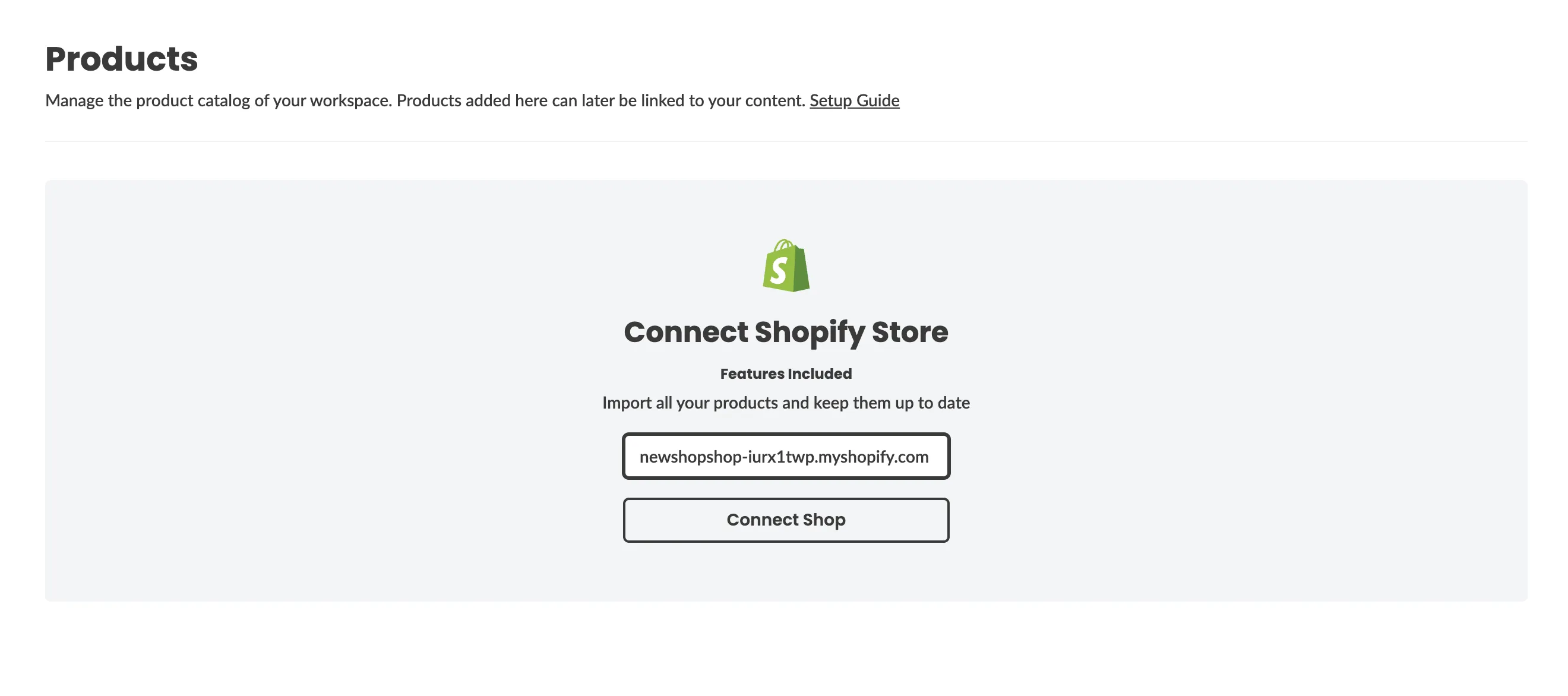
-
You are taken to Shopify. Review the permissions and approve the installation of the squarelovin app.
-
Back in squarelovin, click Open Shopify Plans. The plan selection opens in Shopify in a new tab. Select the free plan there, then come back to squarelovin.
-
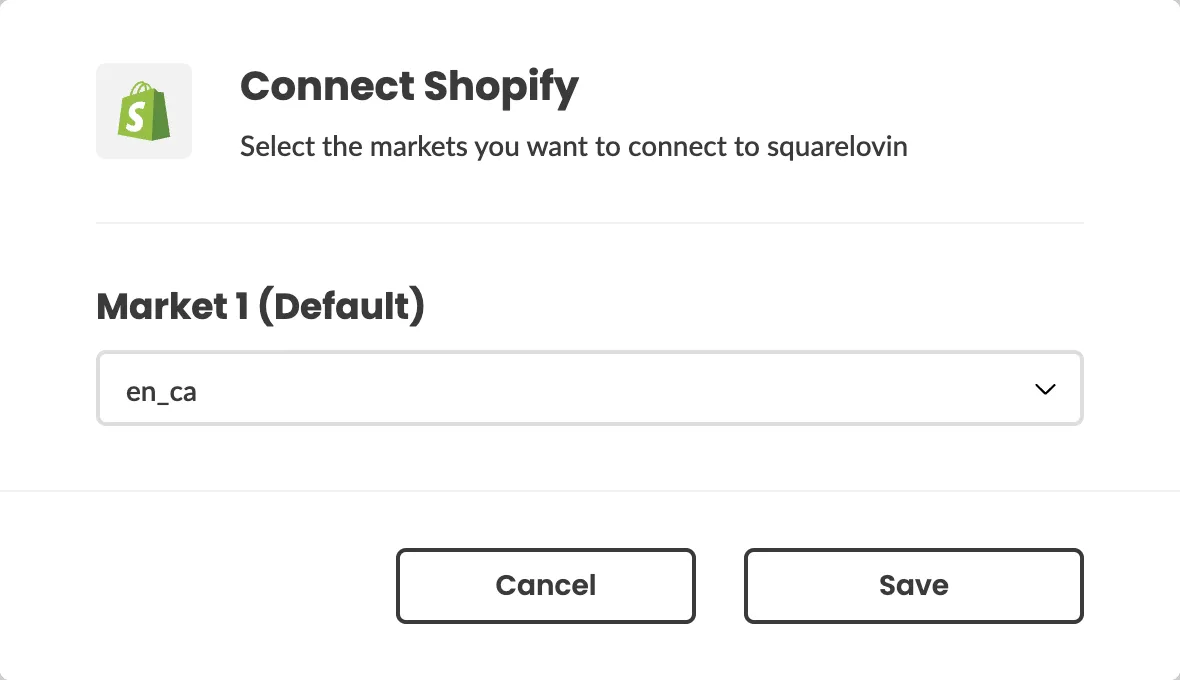
Choose the markets you want to import. Market 1 is your default market. Add every market you sell in, so your products are available in all of them.
-
Click Save. Your first product import starts. You can follow its progress on the Settings → Products page.
Enable the app embed (optional)
Section titled “Enable the app embed (optional)”After you save your markets, squarelovin offers to enable the squarelovin app embed in your Shopify theme. The app embed loads the squarelovin script on every page of your store, so your streams load faster. Your streams also work without it.
- Click Open Theme Editor. The Shopify theme editor opens in a new tab with the squarelovin app embed already switched on.
- Click Save in the theme editor. The app embed is only active after you save.
- Return to squarelovin.
You can also do this later: open Settings → Products, click Edit on your Shopify connection and click Improve performance: enable the app embed.
Finish the setup
Section titled “Finish the setup”When your first import is complete, squarelovin asks you how to group your product variants. Your products are only available for linking to your content after you finish this step.
-
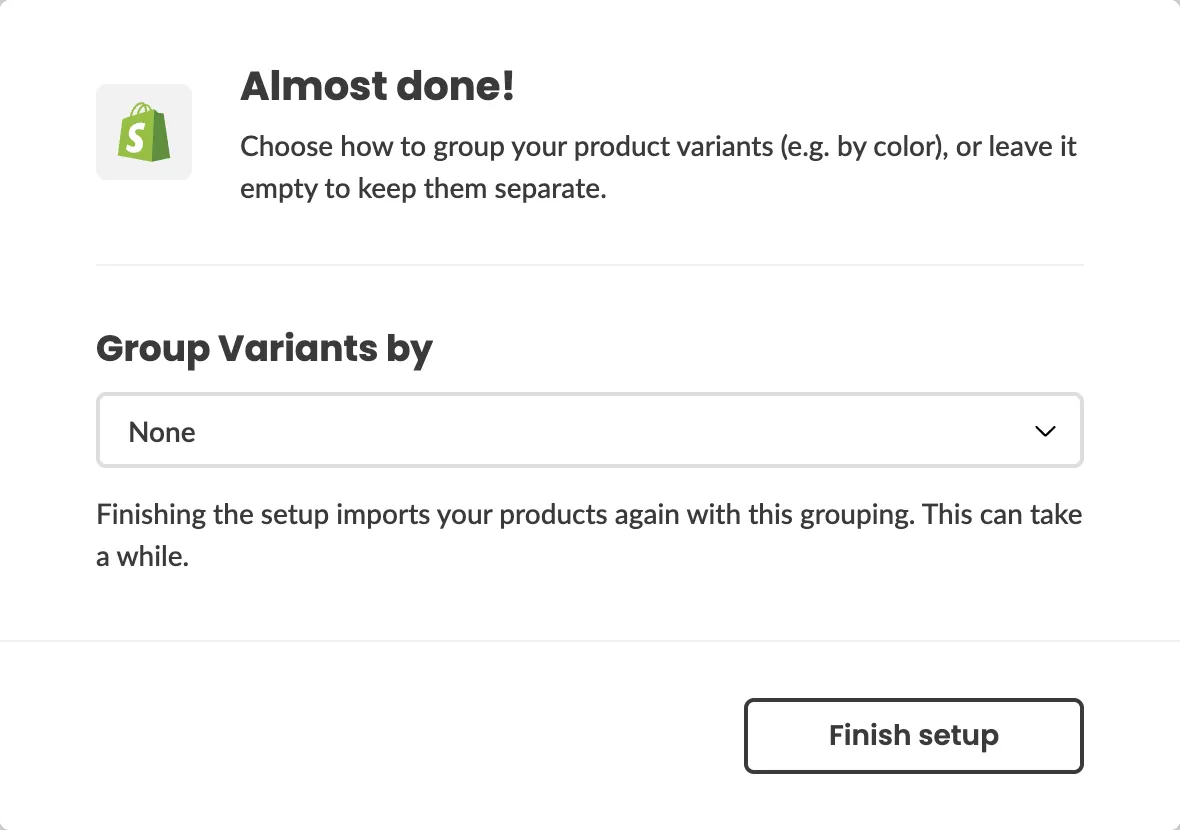
Open squarelovin. The Almost done! window opens.
-
Under Group Variants by, choose the option to group your variants by, for example Color, or keep None. See Group variants by color or another option for what grouping does.
-
Click Finish setup. squarelovin imports your products again with this grouping. This can take a while.
Change your markets
Section titled “Change your markets”- Open Settings → Products.
- On your Shopify connection, click Edit.
- Change the markets. The first market is your default market.
- Click Save. If your markets changed, squarelovin imports your products again.
Group variants by color or another option
Section titled “Group variants by color or another option”By default, each Shopify product is imported as one product with all its variants. With Group Variants by you split products by an option, for example color. Each value of that option then becomes its own product in squarelovin, with its own image and only the variants that belong to it.
Example: A sneaker comes in black and white, each in sizes 40 to 45. Without grouping you get one product with 12 variants. Grouped by color, you get two products: the black sneaker with its 6 sizes and the white sneaker with its 6 sizes. You can link your content to the exact color it shows.
-
Open Settings → Products.
-
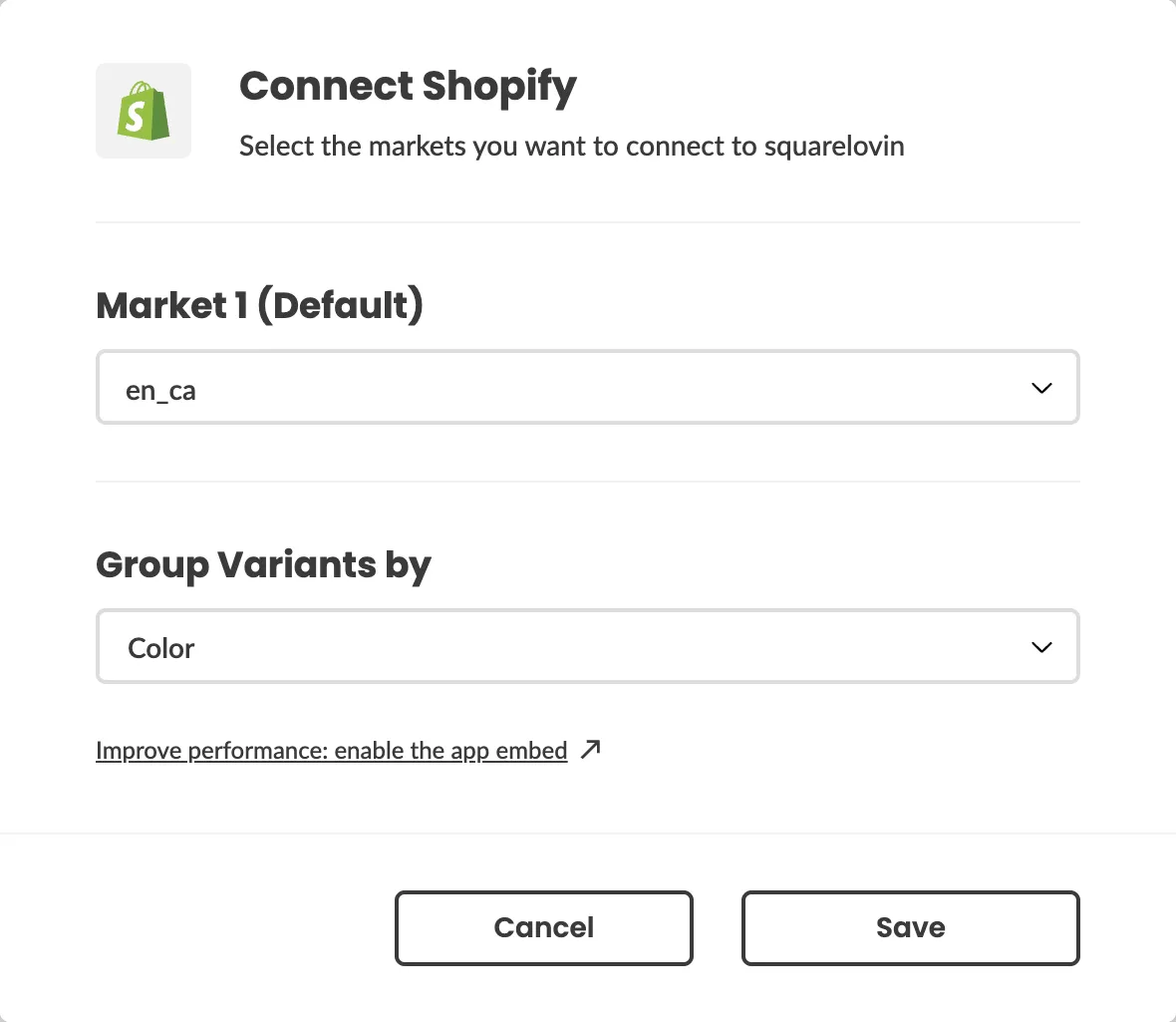
On your Shopify connection, click Edit.
-
Under Group Variants by, select the option name you want to group by, for example Color.
If your products name the same option differently, for example Color in one product and Farbe in another, select all of these names. squarelovin treats them as the same option. Products that have none of the selected options stay one product with all variants.
-
Click Save and confirm with Change & re-import.
The option names you can choose from come from your imported products. That’s why you choose the grouping after the first import, when you finish the setup. The steps above change it later.
If you use the PDP block with Show only the current variant, grouping by color is required.
Disconnect your Shopify store
Section titled “Disconnect your Shopify store”The connection has to be removed in Shopify:
- Open your Shopify admin.
- Click Apps in the left menu.
- Find the squarelovin app in the list and select it.
- Uninstall the app and confirm the uninstallation in Shopify.