

Show squarelovin streams in your Shopify theme
With the squarelovin app blocks you add your streams to your Shopify theme in the theme editor. You don’t need to edit any code. There are two blocks:
- Squarelovin Gallery shows a stream as a gallery or teaser on any page. With filters it also works for dynamic streams.
- Squarelovin PDP shows content for the product on the page. It is available on product pages only.
Example: You add a teaser to your homepage, a gallery to a dedicated inspiration page and the PDP block to your product template. Every product page then shows the content linked to that product.
Before you start
Section titled “Before you start”- Your Shopify store is connected to squarelovin. See Connect your Shopify store and import products.
- You have a stream in squarelovin with the content you want to show.
- For the PDP block: your content is linked to your products.
- You have access to the theme editor of your Shopify store.
Find your Subscription ID and Stream ID
Section titled “Find your Subscription ID and Stream ID”Every block needs your Subscription ID and the Stream ID of the stream you want to show.
-
In squarelovin, open Settings → Delivery → Basic Streams. For a special stream, open Settings → Delivery → Special Streams and select the stream.
-
In the Shopify Integration section, click Copy next to Subscription ID and Stream ID.

Add a gallery or teaser
Section titled “Add a gallery or teaser”-
In your Shopify admin, open Online Store → Themes → Customize.
-
Go to the page where the stream should appear and click Add section.
-
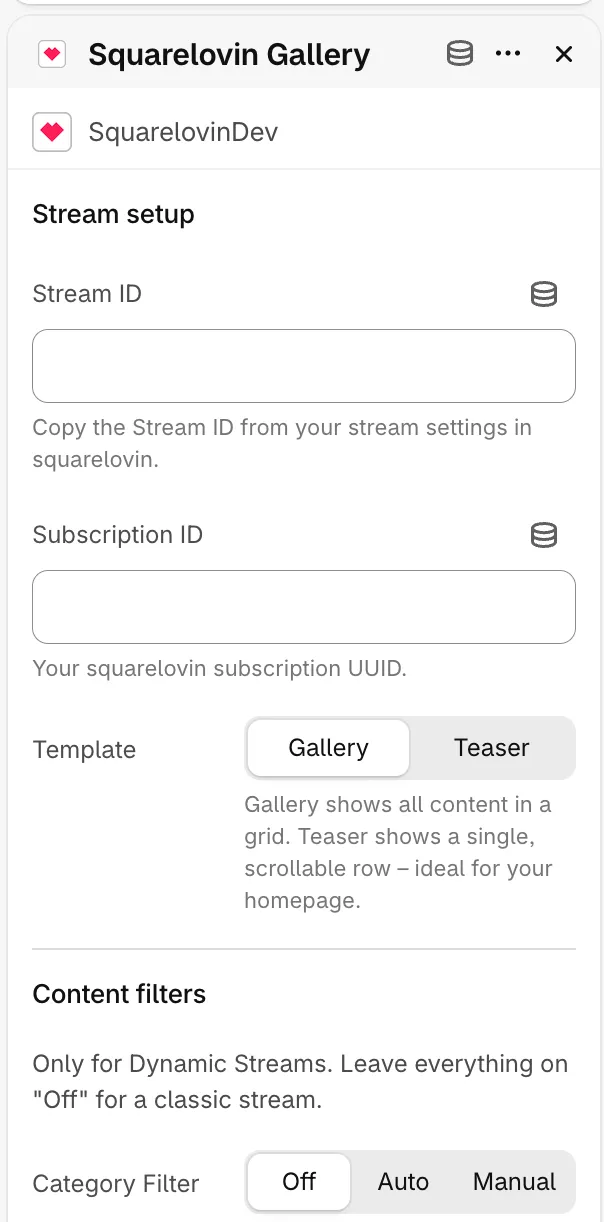
Select Apps → Squarelovin Gallery.
-
Paste your Stream ID and Subscription ID into the block settings.
-
Under Template, choose Gallery or Teaser. Gallery shows all content in a grid. Teaser shows a single, scrollable row, which works well on your homepage.
-
Click Save.
For a classic stream, leave all settings under Content filters on Off.
Show content on product pages
Section titled “Show content on product pages”The Squarelovin PDP block shows the content linked to the product on the current page. It finds the product automatically, so you add it once to your product template and it works for all products.
-
In your Shopify admin, open Online Store → Themes → Customize.
-
Use the page selector at the top of the theme editor to open your product template, for example Products → Default product.
-
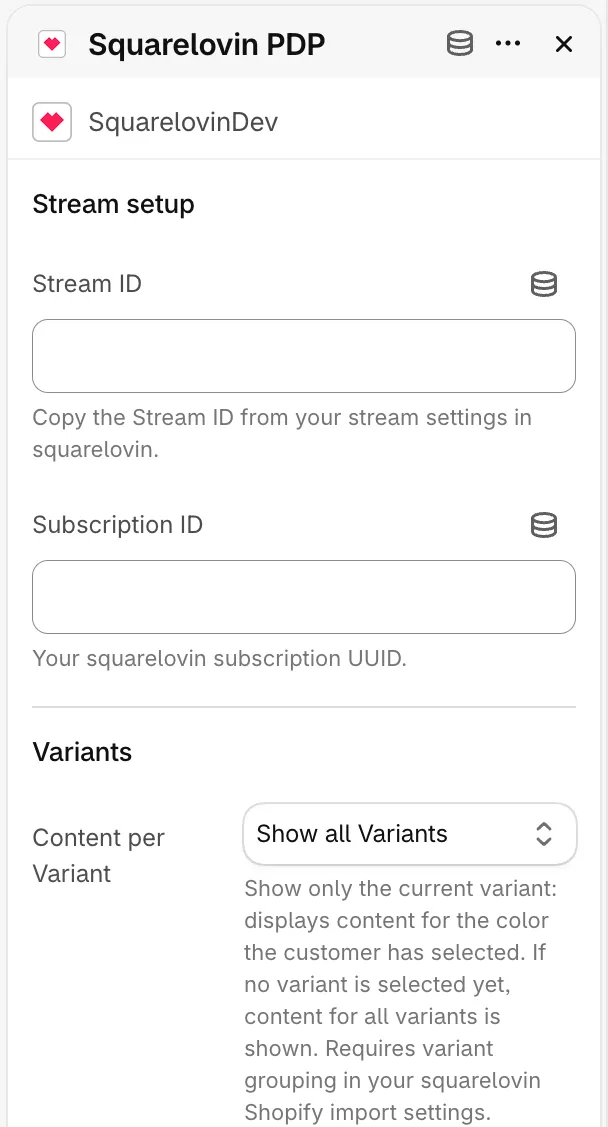
Click Add section and select Apps → Squarelovin PDP.
-
Paste your Stream ID and Subscription ID into the block settings.
-
Under Content per Variant, choose what the block shows:
- Show all Variants: content for all variants of the product. This is the default.
- Show only the current variant: content for the color the shopper has selected. When the shopper picks another color, the block updates. If no variant is selected yet, content for all variants is shown.
-
Click Save.
Filter a dynamic stream
Section titled “Filter a dynamic stream”With a dynamic stream, one block shows different content depending on the page. You set the filters in the Content filters section of the Squarelovin Gallery block.
First create a dynamic special stream in squarelovin and choose which attributes it can be filtered by. See Dynamic streams. Use the Stream ID of this dynamic stream in the block.
| Setting | What it does |
|---|---|
| Category Filter | Off: no category filter. Auto: uses the product category on product pages and the collection title on collection pages. Manual: uses the value you enter in Category Value. |
| Category Value | Appears when Category Filter is set to Manual. Must match the category name in squarelovin exactly. Separate multiple categories with commas. |
| Brand Filter | Off: no brand filter. Auto: uses the product vendor on product pages and the collection title on collection pages. Manual: uses the value you enter in Brand Value. |
| Brand Value | Appears when Brand Filter is set to Manual. Must match the brand name in squarelovin exactly. Separate multiple brands with commas. |
| Tag | Tags from your squarelovin account, not Shopify product tags. Separate multiple tags with commas. |
| Filter by Instagram User | Shows content from these Instagram accounts only. Enter usernames without @, separated by commas. |
| Filter by Tiktok User | Shows content from these TikTok accounts only. Enter usernames without @, separated by commas. |
If you set several filters, the stream only shows content that matches all of them. Several values in one filter show content that matches any of the values.
Example: You want matching content on all your collection pages. Add the Squarelovin Gallery block to your collection template and set Category Filter to Auto. Each collection page then shows the content for the category with the same name as the collection.
Common issues
Section titled “Common issues”The block shows no content. Check that the Stream ID and Subscription ID match the IDs in squarelovin and that the stream contains published content. For a dynamic stream, also check that the filter values are spelled exactly as in squarelovin.
I can’t find the Squarelovin PDP block. The PDP block is only available on product templates. Open a product template in the theme editor and add it there.
The PDP block doesn’t change when the shopper picks another color. Check that Content per Variant is set to Show only the current variant and that your products are grouped by color in your Shopify import settings.
A collection page shows no content although Auto is selected. The collection title doesn’t match a category or brand name in squarelovin. Use Manual and enter the name as it appears in squarelovin.
The squarelovin app doesn’t appear under Apps in the theme editor. Check that the squarelovin app is installed in your Shopify store. App blocks only work in Online Store 2.0 themes. Older themes don’t support them.