

Dynamic streams
With a dynamic special stream you create one stream and decide directly on your website which content it shows. You can filter by category, brand, tag or creator.
This is useful when several streams should look the same and only differ in their content. Instead of creating a separate special stream for every category, you use the same stream everywhere and only change the filter in the code snippet.
Example: You want to show matching customer content on 20 category pages. You create one dynamic stream and embed it on all 20 pages, each with its own category filter.
Before you start
Section titled “Before you start”- Your content in the UGC platform has the information you want to filter by, for example linked products with category and brand, or assigned tags. A dynamic stream can only show content that has this information.
- You can edit the HTML of your pages or templates, or someone on your team or your agency takes care of it.
Create a dynamic special stream
Section titled “Create a dynamic special stream”-
In the UGC platform, open Settings → Delivery → Special Streams.
-
Click Create Special Stream.
-
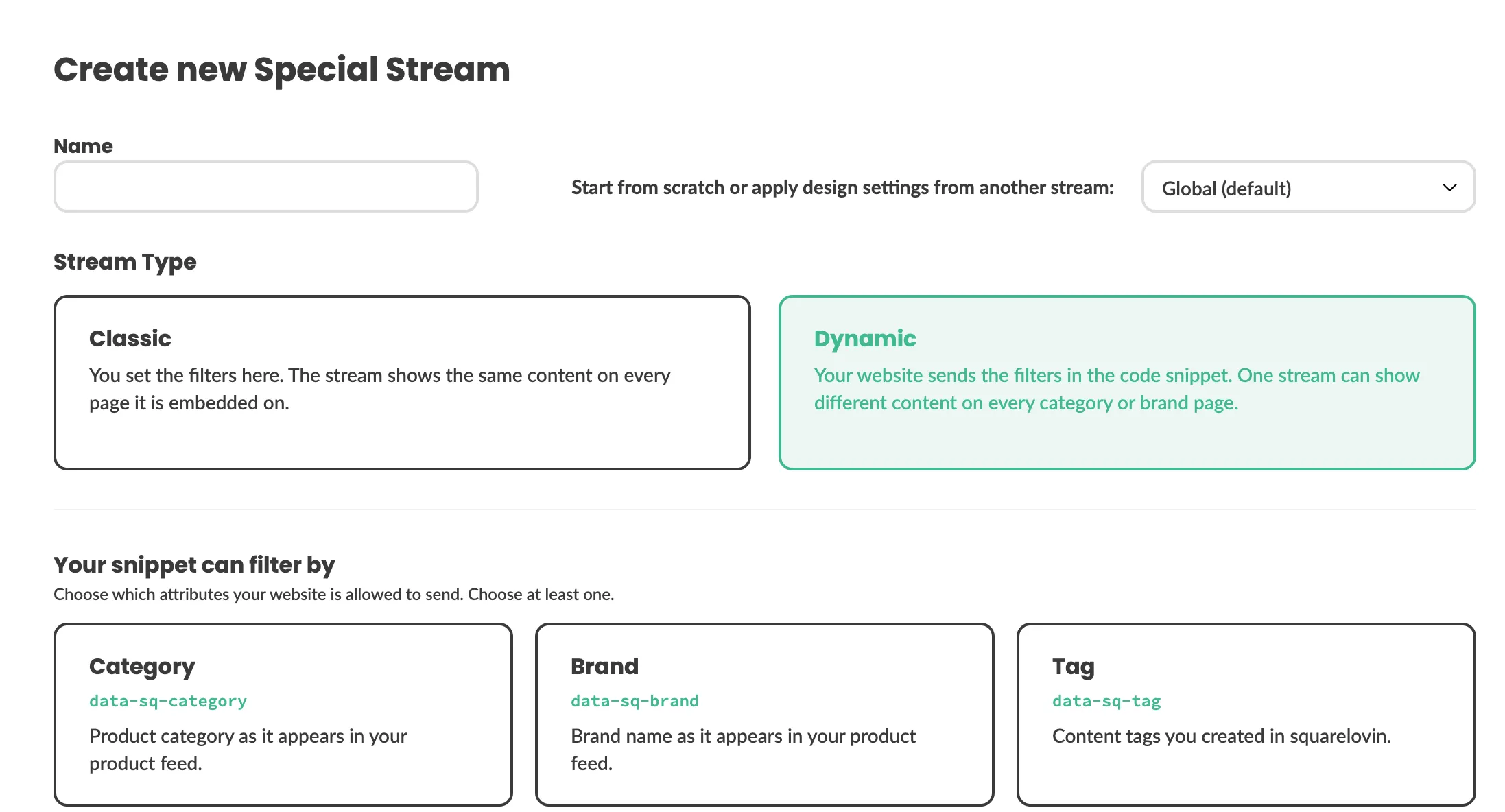
Select Dynamic as the stream type.
-
Under Your snippet can filter by, choose which attributes your website may send, for example category, brand or tag. Choose at least one.
-
Save the stream and copy the code snippet shown.
-
Set the design and template, just like for a classic stream.
Add the code snippet and set filters
Section titled “Add the code snippet and set filters”Add the snippet to every page where the stream should appear. The filter attributes decide which content is shown. Everything else in the snippet stays the same on all pages.
Example: category page “Sneakers”
<div data-sq-container='sqln-YOUR-STREAM-ID' data-sq-stream='YOUR-STREAM-ID' data-sq-sub='YOUR-SUBSCRIPTION-ID' data-sq-template='gallery' data-sq-lang='en_com' data-sq-category='sneakers'></div>Example: category and brand combined
<div data-sq-container='sqln-YOUR-STREAM-ID' data-sq-stream='YOUR-STREAM-ID' data-sq-sub='YOUR-SUBSCRIPTION-ID' data-sq-template='gallery' data-sq-lang='en_com' data-sq-category='sneakers' data-sq-brand='nike'></div>Available filters
Section titled “Available filters”| Attribute | Filters by | Example |
|---|---|---|
data-sq-category |
Product category | data-sq-category='sneakers' |
data-sq-brand |
Brand | data-sq-brand='nike' |
data-sq-instagram |
Instagram username | data-sq-instagram='squarelovin' |
data-sq-tiktok |
TikTok username | data-sq-tiktok='squarelovin' |
data-sq-tag |
Tag in the UGC platform | data-sq-tag='summer' |
- You can set one or more filters at the same time. Filters you leave out are ignored.
- With several filters, the stream only shows content that matches all of them.
- You can set several values per filter, separated by commas, for example
data-sq-tag='summer,sale'. The stream then shows content that matches any of the values.
Common issues
Section titled “Common issues”The stream shows no content. The filter value usually does not match the data in the UGC platform. Check that the value is spelled exactly as in the UGC platform, then check that there is published content with this category, brand or tag.
I want to show several streams on the same page. That works. Add a separate snippet for each stream. You still only embed the squarelovin script once per page.